
Trying to find a past Zoom meeting can mean several different things. You might need the meeting ID, attendance list, chat messages, recording, or an actual record of what people discussed.
Zoom stores each of those in a different place. There is no single page containing your complete Zoom history.
This guide shows where to look, what each history view includes, and the limits you should know before depending on it.
How to access your Zoom meeting history
The right method depends on whether you hosted the meeting, joined it, or administer the Zoom account.
For meetings you hosted
For a meeting you scheduled or hosted:
- Sign in to the Zoom web portal.
- Click Meetings in the navigation menu.
- Open the Previous tab.
- Select the meeting to view its available details.
Zoom says the Previous tab lists scheduled meetings from the past 30 days. It is useful for finding a recent topic or meeting ID, but it is not a permanent meeting archive.
If an older meeting is missing, check reports, recordings, calendar history, or your notes before assuming it never happened.
Meeting IDs also expire. According to Zoom's current meeting ID rules:
- An instant meeting ID expires when the meeting ends.
- A scheduled, non-recurring meeting ID expires 30 days after its scheduled date.
- Restarting that scheduled meeting within the 30-day window resets the timer.
- A recurring meeting ID expires after 365 days without an occurrence.
- A personal meeting ID can also expire after 365 days without use.
These expiration rules affect whether a meeting remains available to start. They are separate from report, chat, and recording retention.
For meetings you joined
Zoom does not provide ordinary participants with the same complete history that hosts and account admins can access.
The desktop app offers a quick local shortcut:
- Open the Zoom desktop app.
- Click Join.
- Open the dropdown in the Meeting ID field.
- Look for the recent meeting topic or ID.
This list is best treated as a convenience, not an authoritative record. It shows a short selection of recently joined meetings, may omit useful timestamps, and can vary by app version or device. Zoom does not document it as a durable cross-device meeting archive.
If the meeting is not there, try these sources:
- Your calendar event
- The original Zoom invitation
- Email search for the host, topic, or meeting ID
- Zoom Chat search
- A shared recording or transcript
- Your company's Zoom administrator, if account policy permits access
Account admins may also have attendee reports showing meetings a managed user joined as a participant. Regular participants cannot generate those reports for the wider account.
Using Zoom reports for longer history
For attendance, duration, and account usage, reports are more useful than the Previous tab.
Zoom reporting is available for paid accounts, including Pro, Business, Enterprise, Education, and API plans. The meeting must have been hosted by a paid account for Zoom to create the relevant report.
Depending on your role, open Analytics & Reports or the reporting area in Admin Center, then choose the appropriate usage or meeting history report.
Zoom's reporting documentation says meeting reports can be retrieved for the previous 15 months, with a maximum search range of one month per query. Reports can include:
- Meeting topic and ID
- Start time and duration
- Host information
- Participant names and email addresses when available
- Meeting minutes
- Polling or registration details for supported meetings
Recently ended meetings may take 15 to 30 minutes to appear with complete data.
Cloud recording reports have a different limit. Zoom says those reports are available for the previous 12 months, even though ordinary meeting reports extend to 15 months.
Upgrading later does not reconstruct reports Zoom never created. If you need a reliable attendance trail, confirm reporting access before the meetings happen.
Where Zoom keeps each kind of history
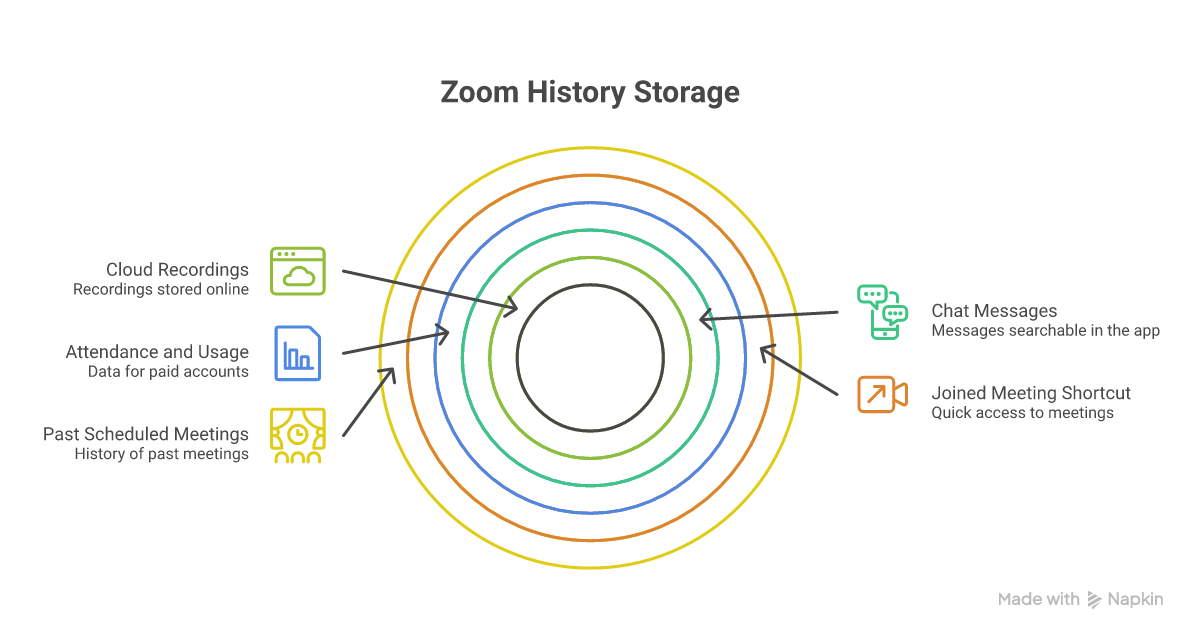
Use this map when you know what you are looking for but not where Zoom put it:
| You need | Where to look | Main limitation |
|---|---|---|
| A recent hosted meeting or ID | Web portal, Meetings > Previous | Previous tab covers the past 30 days |
| A recently joined meeting ID | Desktop app, Join dropdown | Short local list, not a complete archive |
| Attendance and duration | Analytics & Reports or Admin Center | Paid-account and role requirements |
| Messages and shared links | Desktop app, Team Chat search | Subject to account retention policy |
| A cloud recording or transcript | Web portal, Recordings & Transcripts | Only recordings made to Zoom Cloud appear |
| What was actually discussed | Recording, transcript, or meeting notes | Meeting metadata alone does not contain content |
The distinction matters. Zoom's meeting list proves that a scheduled meeting existed. A report can prove who joined. Neither one necessarily tells you what the team decided.
How to find Zoom chat history
Zoom chat history is separate from meeting history. If you remember a link, file, decision, or follow-up message, search chat before digging through meeting reports.
Search your Zoom chat messages
In the Zoom desktop app:
- Open the Team Chat tab.
- Use the search field.
- Search for a person, channel, phrase, link, or filename.
- Apply message, contact, channel, or date filters if available.
- Open a result to return to its original conversation.
Zoom's chat search guide says search covers chats, channels, messages, and contacts. This is usually the fastest route when you remember a fragment of the conversation but not its date.
Search only returns messages that still exist under your account's retention rules. A missing result may mean the wording is different, the message belonged to another account, or the message has already been deleted.
Understand Zoom chat retention
Zoom's message storage documentation separates cloud and local retention.
For cloud-stored Zoom Chat messages:
- The default retention period is two years.
- Owners and admins of paid accounts can set it from one day to ten years.
- Changing the retention period applies to new messages rather than rebuilding deleted history.
- If cloud message storage is disabled, messages for offline users may remain in the cloud for up to seven days before deletion.
For local message storage:
- Paid-account admins can configure a separate local retention policy.
- Local deletion is disabled by default on configurable paid accounts, so local messages are not automatically removed unless an admin sets a limit.
- On free accounts, the local retention control cannot be changed, and messages may remain on that device for up to one year unless the Zoom app is deleted.
Retention can also depend on conversation ownership. A one-to-one chat may follow the shorter policy between the two users, while a group chat or channel can follow its owner's policy.
If your organization needs chat as a formal record, ask the Zoom admin what policy is actually configured. The product default is not proof of your account's settings.
Admin access to chat history
Admins with the required chat history permissions can use Zoom's Chat History Report to view, download, or delete eligible messages stored in the cloud.
The current administrative path starts from the profile menu and Admin Center, then the Zoom Chat storage and reporting settings. Exact labels can vary with the account's enabled products and Zoom's navigation updates.
Admin access does not override retention. Once a message has been removed under the configured policy, the history report cannot recover it.
How to find Zoom cloud recordings and transcripts
Cloud recordings are stored separately from meeting lists and reports.
To find your own:
- Sign in to the Zoom web portal.
- Open Recordings & Transcripts.
- Search or filter by date, meeting topic, meeting ID, or recording status.
- Open the meeting to view its recording files, audio transcript, or other generated assets.
Zoom documents the current locations in its guide to finding computer and cloud recordings.
A few rules explain many missing recordings:
- Cloud recording requires an eligible paid account.
- A computer recording stays on the computer that created it, usually under the local Zoom folder.
- A recording started by a co-host appears in the original host's cloud recording list.
- Account admins use Recording and Transcript Management to review recordings across the account.
- A meeting can appear in history without having any recording.
Cloud recording retention is controlled by the account owner or admin. Organizations often set their own automatic deletion periods, so do not assume a cloud recording will remain available indefinitely.
What Zoom meeting history actually shows
Zoom history is good at operational metadata. Depending on the view and your permissions, you may be able to find:
- When a meeting was scheduled or started
- Who hosted it
- Who attended
- How long participants stayed
- The meeting ID
- Chat messages
- Cloud recording files
- A transcript or AI Companion summary, if those features were enabled
But a basic meeting-history entry does not contain the substance of the conversation.
It usually cannot answer:
- What decision did we make?
- Why did the customer reject the proposal?
- Which action item did I accept?
- What exact wording did the engineer use?
- Where did the project requirement change?
- Which earlier meeting covered the same issue?
For those questions, you need a recording, transcript, or notes created during the meeting. History metadata can tell you which meeting to inspect, but it cannot recreate content that was never captured.
This is the practical dividing line:
- Use Zoom history for IDs, dates, attendance, messages, and recordings.
- Use a meeting-memory system for searchable discussion, decisions, and follow-up context.
How Anarlog turns meetings into searchable history
Anarlog is an open-source AI meeting notetaker. It captures system and microphone audio without sending a visible bot into the Zoom call, then keeps the canonical meeting record in local SQLite.
Instead of relying on Zoom's account history as your memory, you get the notes, transcript, summary, and meeting metadata together.
Search actual conversations
Search for a person's name, customer, project code, or phrase to find the relevant meeting and transcript context.
A search for "budget" can take you to the part of the conversation where the budget changed. You are not limited to a list of meetings that might have contained the topic.
Ask questions across meeting records
When you do not remember the exact phrase, AI Chat can help retrieve the context through natural-language questions:
- "What are my action items from this week's meetings?"
- "What did Richard say about the server migration?"
- "Which meetings mentioned the launch delay?"
The answer is grounded in the meeting records available to Anarlog. You can return to the source transcript when exact wording matters.
Browse history by date or relationship
Anarlog's meeting views provide different ways to navigate the same locally stored records.
Calendar View organizes meetings by date.
Table View makes it easier to scan a larger history.
Contacts View groups meetings by person or organization.
These views help when you remember the week, the company, or the project but not the meeting title.
Verify summaries against the transcript
AI summaries are useful, but they should not become an unverifiable record. Source analysis lets you check summary statements against the underlying transcript when a requirement, quote, or commitment needs confirmation.
That does not make transcription infallible. It gives you a direct path back to the captured source instead of forcing you to trust a generated summary in isolation.
How Anarlog works with Zoom
Anarlog captures system audio and microphone input on your machine, so it works with Zoom without joining as another participant. The same approach works with Teams, Google Meet, phone calls, and in-person conversations.
Anarlog is available on macOS, with Windows and Linux in beta.
Its data model is local-first:
- Canonical sessions, notes, transcripts, and meeting metadata live in local SQLite.
- Attachments and recordings remain separate local files.
- Markdown is available as an export format when you need portability.
- The code is MIT-licensed and auditable.
- You choose how AI processes the meeting: local models, your own provider keys, or a hosted option.
- Optional CloudSync encrypts data before it leaves the device, with explicit data paths for sharing and hosted features.
A fully local AI setup can keep processing on your machine. If you choose a cloud transcription or language-model provider, the relevant content is sent to that provider under its terms. Anarlog's advantage is control over that decision, not a blanket claim that data can never leave your device.
Zoom remains the meeting platform. Anarlog becomes the meeting memory you own.
Download Anarlog if you want searchable meeting history without tying your canonical records to a vendor-hosted workspace.